 Special Offer - Flat 18% off on annual payments!


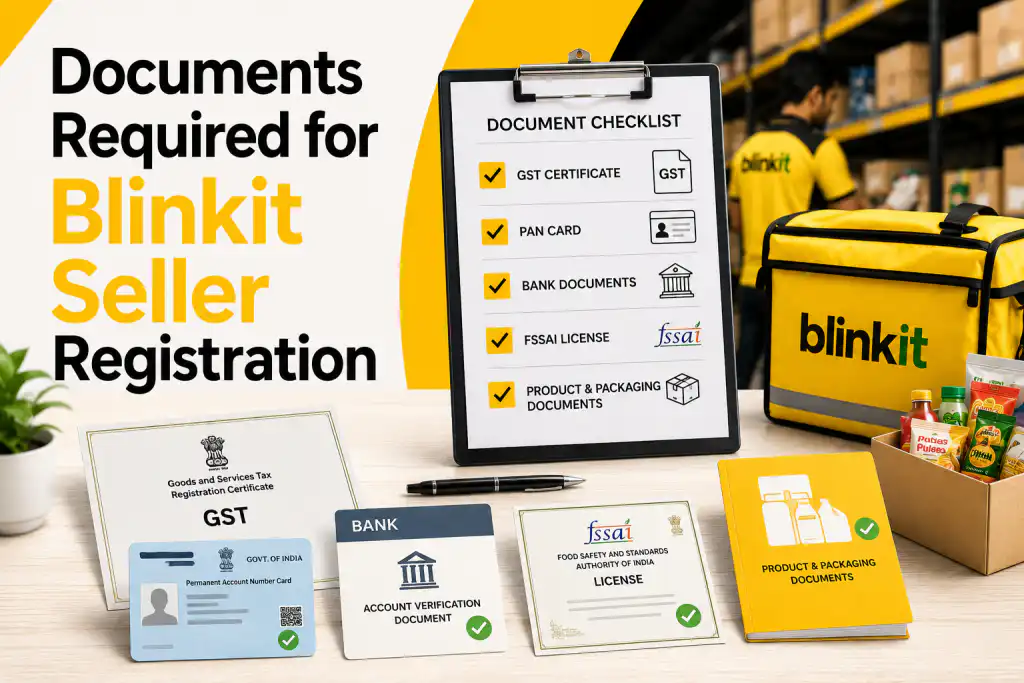
Documents Required for Blinkit Seller Registration: Avoid Costly Approval Delays
Most brands treat document preparation as an afterthought — something to scramble together after starting the registration form. The brands that go live fastest treat it as the very first step, completed entirely before they even open the Blinkit Seller Hub. This guide gives you a complete, structured, document-by-document breakdown — including what each document proves, exactly what format Blinkit requires, and the most common errors that cause rejections at each stage.
Complete Document Overview — At a Glance
Before diving into each document in detail, here is the master overview of every document required, whether it is mandatory for all sellers or conditional, and which seller type it applies to:
| # | Document | Required For | Status | Time to Obtain |
|---|---|---|---|---|
| 1 | GST Certificate (GSTIN) | All sellers | Mandatory | 15–30 days if not registered |
| 2 | PAN Card | All sellers | Mandatory | 7–10 days if new |
| 3 | Bank Account Details + Cancelled Cheque | All sellers | Mandatory | 7–14 days if new account |
| 4 | Business Registration Proof | All sellers | Mandatory | Already available or 7–10 days |
| 5 | Trademark Certificate / Application | Branded product sellers | Branded Products | Application: 2–3 days. Full grant: 12–18 months |
| 6 | FSSAI License | Food, beverage, nutrition sellers | Food Sellers | 30–60 days if not yet applied |
| 7 | Product Images (per SKU) | All sellers | Mandatory | 1–3 days (professional shoot) |
| 8 | Product Catalogue / Brand Deck | All sellers | Mandatory | 2–5 days to prepare |
| 9 | APOB on GST Portal (ARN) | All sellers going live | Mandatory | 7–15 working days (GST portal) |
| 10 | Import Export Code (IEC) | Importers / international brands | If Applicable | 3–7 working days from DGFT |
| 11 | Drug License | OTC medicine / pharma sellers | If Applicable | 30–90 days from state authority |
| 12 | BIS Certification | Electronics / electrical products | If Applicable | 30–90 days from BIS |
Document-by-Document Breakdown — What Blinkit Actually Needs
All Sellers — Mandatory
Your 15-digit Goods and Services Tax Identification Number is the foundation of your Blinkit seller account. Blinkit’s system uses your GSTIN to automatically fetch your business name, registered address, and entity type from the government database. Any discrepancy between what the GST portal shows and your other documents triggers an immediate verification failure.
The Permanent Account Number must be in the name of the business entity for companies, LLPs, and partnerships. For sole proprietors, an individual PAN in the owner’s name is acceptable. The name on the PAN must exactly match the name on your GST certificate — Blinkit cross-references both documents automatically during verification.
This proves your business legally exists as a registered entity in India. The specific document varies by entity type — see the entity-wise guide in the next section. Private limited companies submit their Certificate of Incorporation (CIN) from the MCA portal. Udyam Registered MSMEs submit their Udyam Certificate. Partnerships submit a registered Partnership Deed.
All Sellers — Mandatory
Your payment settlement from Blinkit will go to this account. It must be a current account (not a savings account) held in the exact name of your registered business entity. Provide the account number, IFSC code, and bank name. Blinkit may cross-verify ownership before activating payouts.
A cheque from your business bank account with “CANCELLED” written across it in clear pen. This is used for bank account verification — confirming that the account number, IFSC code, and account holder name on the cheque match the details you have provided in the registration form.
Varies by Product Type
Required for all sellers listing branded products — which covers the vast majority of D2C and FMCG brands. If your trademark registration is complete, submit the Certificate of Registration issued by the IP India trademark office. If your trademark is still pending, the application acknowledgement (filing receipt) showing your application number is accepted as a temporary substitute during onboarding.
Mandatory for all sellers dealing in food products, beverages, packaged water, dairy, confectionery, snacks, health supplements, nutraceuticals, and any product intended for human consumption. The FSSAI license must be valid (not expired) and the registration number must appear on your product packaging. A Central FSSAI License is required for businesses operating across multiple states or with turnover above ₹20 crore.
Required if you are selling Over-The-Counter (OTC) medicines, Ayurvedic/Unani formulations, or any regulated pharmaceutical products. The license must be issued by the relevant State Drug Control Authority and show the specific product categories authorised for sale.
Required for electronics, electrical products, toys, and certain household appliances that fall under mandatory BIS certification categories. Products under the Compulsory Registration Scheme (CRS) require BIS certification before they can be listed on any Indian e-commerce or quick commerce platform.
Required if your brand manufactures products overseas or imports raw materials. The IEC is issued by the Director General of Foreign Trade (DGFT) and is a 10-digit code. For brands selling purely domestic products, this is not required.
All Sellers — Mandatory Per SKU
Every SKU requires a minimum of 3 high-quality product images submitted at the time of listing. Blinkit’s compliance team reviews every image against strict guidelines before approving the listing. Images are the #2 most common cause of SKU-level rejections after document name mismatches. Plan a professional product photoshoot before beginning the onboarding process.
A structured document presenting your complete product range to the Blinkit Category Manager. This is your brand’s pitch document — it must showcase your SKU list with MRP, pack sizes, key product USPs, target customer profile, and any existing sales data or market traction.
Every product SKU listed on Blinkit must have a unique, scannable barcode on its physical packaging. Blinkit’s dark store operations rely on barcodes for inventory management, picking, and dispatch accuracy. If your products do not yet have GS1-compliant barcodes, obtain them from GS1 India before beginning the listing process.
All Sellers — Critical Final Step
Adding Blinkit’s dark store/warehouse address as an Additional Place of Business (APOB) on your GST registration is a mandatory compliance requirement before your account can go live. You apply on the GST portal (gst.gov.in), receive an Application Reference Number (ARN), and share this ARN with your Blinkit Category Manager. The APOB is required because your inventory will be physically stored at Blinkit’s warehouse — which must be declared under your GST registration. This process takes 7–15 working days on the government portal and must be started as early as possible in the onboarding journey.
Documents by Business Entity Type
The business registration proof required varies depending on how your business is legally structured. Here is the exact document needed for each entity type:
| Entity Type | Business Registration Document | Where to Get It | Additional Notes |
|---|---|---|---|
| Private Limited Company | Certificate of Incorporation (COI) with CIN | MCA portal (mca.gov.in) | Also submit MOA & AOA if requested by CM |
| LLP | LLP Incorporation Certificate from MCA | MCA portal — LLP registration records | LLP Identification Number (LLPIN) must be visible |
| Partnership Firm | Registered Partnership Deed | Stamp duty registered deed from Sub-Registrar office | Must be registered — unregistered deeds not accepted |
| Sole Proprietorship | Udyam Registration Certificate OR GST Certificate | Udyam portal (udyamregistration.gov.in) | Individual PAN acceptable. GST certificate may suffice as business proof |
| MSME / Udyam Registered | Udyam Registration Certificate | Udyam portal — download from existing registration | Strong preference for Udyam registration in all entity types |
| Trust or NGO | Trust Deed + Registration Certificate | Registrar of Societies / Charity Commissioner | Blinkit rarely onboards trusts — confirm category eligibility first |
Document Format Requirements — Get These Right Before Uploading
Blinkit’s document review system has specific technical requirements for every file you upload. Failing to meet these format standards is a surprisingly common cause of processing delays. Here is what you need to know:
All business and compliance documents should be submitted as PDF files. Product images must be JPG or PNG. Do not submit Word documents, Excel files, or compressed ZIP folders.
Each document file should be compressed to under 5MB before uploading. Large PDFs (scanned documents) often exceed this limit. Use a free PDF compressor tool to reduce file size while maintaining legibility.
Every text element — name, address, registration number, date — must be clearly readable without zooming. Blinkit’s review team routinely rejects documents where key details are blurry, partially cut off, or obscured by shadows.
Product images for listings require a minimum of 1000×1000 pixels in the primary (hero) image. Images below this threshold are automatically flagged for rejection during the SKU approval process.
Name your files clearly before uploading. Use a consistent convention such as “BrandName_DocumentType.pdf” — e.g., “SunriseSnacks_GST_Certificate.pdf”. Clear file names signal professionalism.
Check expiry dates on every document before submission — especially FSSAI licenses, drug licenses, and BIS certifications. Expired documents are rejected immediately. Renew before starting the onboarding process.
APOB Setup on GST Portal — Step-by-Step Process
The APOB (Additional Place of Business) setup is the most technically complex step in the entire Blinkit seller registration process — and the most frequently delayed. Here is the complete process:
Contact your assigned Blinkit Category Manager and request the exact warehouse address of the Blinkit dark store that will be servicing your cluster (city zone). This is critical — using a generic Blinkit address or an address from the internet will result in an APOB rejection that restarts the 7–15 working day clock.
Go to the official GST portal (gst.gov.in) and log in using your registered username and password. Navigate to “Services” → “Registration” → “Amendment of Registration (Non-Core Fields)” or “Amendment of Registration (Core Fields)” depending on your GST registration type.
Navigate to the “Additional Places of Business” tab in the amendment form. Click “Add” and enter the complete Blinkit dark store address provided by your CM — including plot number, floor, street, locality, city, state, and PIN code. Select the nature of business as “Warehouse / Depot” and specify that this is a location where goods will be stored.
Review all details carefully and submit the amendment application. The GST portal will generate an Application Reference Number (ARN) immediately upon submission. Save this ARN — you will need to share it with your Blinkit Category Manager as proof that the APOB application is in process. The GST department reviews and approves APOB applications within 7–15 working days.
Once the APOB is approved by the GST department, your updated GST registration certificate will show the Blinkit warehouse address as an additional place of business. Download this updated certificate and share it with your Category Manager. This is the final compliance step before your Blinkit account goes live.
Top Document-Related Rejection Reasons — And How to Avoid Every One
The most common rejection cause. “ABC Foods Private Limited” on GST but “ABC Foods Pvt Ltd” on PAN and “ABC Foods” on the bank account are treated as three different entities.
An expired GST registration, a return-defaulting GSTIN that has been suspended, or a newly applied GSTIN not yet reflected on the portal all cause immediate rejection at the verification stage.
Food and beverage sellers who begin the process without a valid FSSAI license face automatic rejection. There is no workaround or temporary exemption — FSSAI is a hard requirement.
Coloured backgrounds, low resolution (under 1000px), watermarks, missing MRP visibility, or stock photos — any one of these causes SKU-level rejection that adds 3–7 days per resubmission cycle.
Using a generic Blinkit address from the internet or from another brand’s onboarding experience causes APOB rejection — restarting the 7–15 working day portal process.
Products without GS1-compliant barcodes, or products where the same barcode is used across different pack sizes, fail Blinkit’s listing compliance check completely.
An expired FSSAI license, BIS certification, or drug license submitted during onboarding causes immediate rejection. Blinkit’s system checks validity dates automatically.
A trademark certificate filed in one brand name variant but products labelled with a slightly different version (e.g., “SunRise” vs “Sunrise”) causes a compliance discrepancy that blocks approval.
Your Complete Blinkit Document Checklist — Save & Use This
Use this master checklist to track your document preparation status before beginning the Blinkit seller registration process. Every item marked Mandatory must be ready before you open the Blinkit Seller Hub.
Save for Reference
Mandatory
Mandatory
Mandatory
Mandatory
Mandatory
Branded Products
Food Sellers
Pharma/OTC
Electronics
Importers
Per SKU
Mandatory
Per SKU
Mandatory
Final Step
Frequently Asked Questions — Blinkit Seller Documents
Yes, you can start the Blinkit seller onboarding process without a trademark certificate if you have a trademark application acknowledgement.
Among the Blinkit seller registration documents required for branded products, either a trademark certificate or an application receipt from IP India is accepted. Most D2C and FMCG brands use the application acknowledgement while waiting for the final registration. Although trademark approval can take 12–18 months, the acknowledgement receipt is generally sufficient during onboarding.
If your FSSAI license expires, Blinkit may suspend your listings until a renewed license is submitted.
A valid FSSAI license is one of the most important documents needed for a Blinkit seller account in the food and beverage category. To avoid delays in the Blinkit seller onboarding process, renew your license at least 60 days before its expiry date.
Yes, each Blinkit city cluster requires a separate APOB registration.
One of the key Blinkit registration requirements is adding every warehouse location as an Additional Place of Business (APOB) under your GST registration. If you operate in multiple cities, each cluster requires its own APOB application and ARN.
Yes, both your brand and the third-party manufacturer may need valid FSSAI licenses for food products.
While preparing your Blinkit seller document checklist, ensure that all required manufacturing and compliance documents are available. Blinkit may request both licenses depending on your product category and manufacturing arrangement.
The most important Blinkit seller registration documents include GST, PAN, bank details, business registration proof, and category-specific licenses.
Depending on your product category, additional Blinkit seller onboarding documents such as FSSAI licenses, trademark certificates, BIS certifications, or drug licenses may also be required. Preparing these documents in advance helps avoid approval delays.
The Blinkit seller onboarding process usually takes 30–45 days if all documents are ready.
The actual timeline depends on document verification, category approvals, and APOB processing. Businesses that prepare their Blinkit seller document checklist before applying generally go live much faster.
The Bottom Line — Prepare Documents First, Register Second
Every brand that has experienced a smooth, fast Blinkit onboarding shares one thing in common: they had every document ready, verified, and correctly formatted before opening the Seller Hub. Every brand that has experienced delays, rejections, and frustration shares another thing in common: they started registering before they were truly prepared.
Document preparation is not the boring part of getting on Blinkit — it is the most important part. Get it right the first time and you could be live on India’s #1 quick commerce platform within 30–45 days. Get it wrong and you could spend twice that time fixing avoidable errors while your competitors build category visibility and repeat customers that you are missing.
✔ There are 14 documents/assets in the complete Blinkit seller registration checklist — know all of them before you start
✔ The Golden Rule: business name must be identical across GST, PAN, bank account, trademark, and registration certificate
✔ FSSAI is non-negotiable for food, beverage, supplement, and nutrition sellers — no workaround exists
✔ Product images are the #2 rejection cause — white background, 1000×1000px minimum, 3 shots per SKU
✔ APOB setup takes 7–15 working days — start it on Day 1 of onboarding, not after everything else is done
✔ Each Blinkit cluster requires a separate APOB with that cluster’s specific dark store address
✔ Brand Chanakya offers complete document audit and APOB management as part of our Blinkit onboarding service
Not Sure If Your Documents Are Ready for Blinkit?
Brand Chanakya’s Blinkit onboarding team performs a complete document audit before your application is filed — identifying every mismatch, missing certificate, and format error before they become a rejection. Book a free consultation today.